I’ve worked with Nutanix Enterprise AI (NAI) a lot over the last few months. I’ve deployed it across several Nutanix Kubernetes Platform (NKP) architectures: VMs on Nutanix HCI, VMs on Nutanix Cloud Platform with External Storage and bare-metal Ubuntu backed by Everpure. This post is about the last, the most unusual of the three and the platform for my broadest set of experiments.
This will be the first in a series of posts about my work with this cluster. In this post I will focus on the architecture and initial set-up. Later I will cover post-deployment activities including break/fix troubleshooting, model deployment, tuning and other tips and trick. In the final post I will cover building up an open-source gstack-style agentic coding setup driven by OpenCode and leveraging Qwen3.6-27B-FP8, gemma-4-31B-it and gpt-oss-120b running on NAI.
Why did I choose this architecture? I needed to test NAI + NKP + GPU pass-through. The only GPU nodes I had available didn’t have M.2 boot drives but I did have access to an Everpure array. Since NKP works with bare-metal Linux, and NAI just needs kubernetes, this seemed like sufficient hardware to make it work.
The Architecture
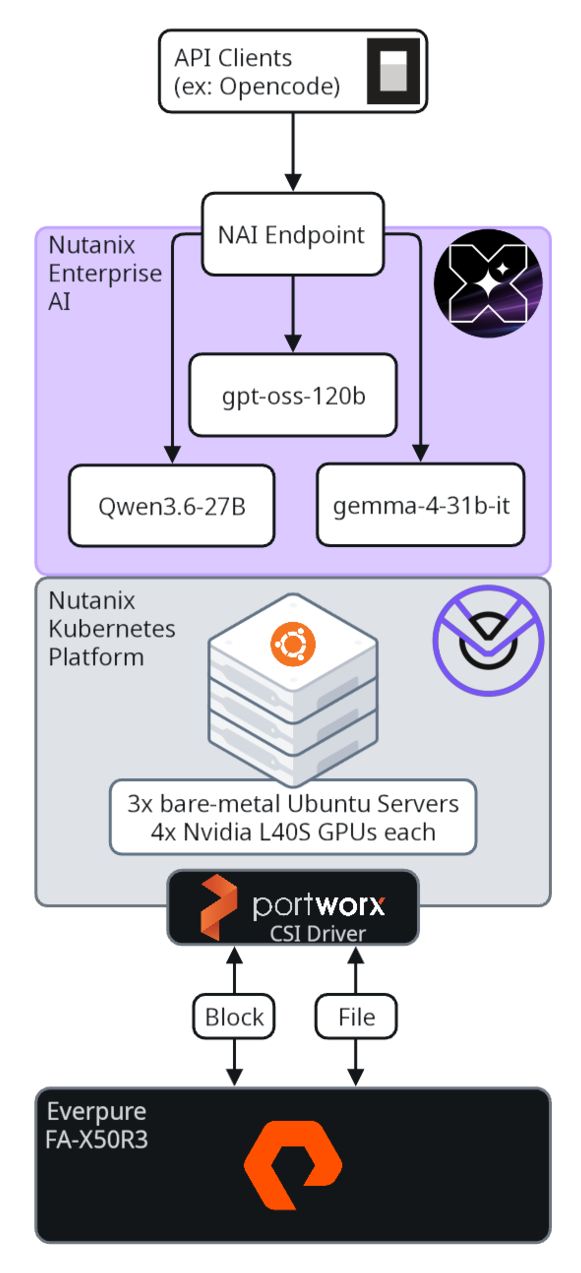
This is what I built. NKP 2.17 is deployed as a converged management pod with the control plane nodes running as VMs on another lab cluster and the GPU hosts as workers. NAI 2.6.0 was deployed from the NKP Applications marketplace which was slick. Storage is a single Pure FlashArray, accessed via the Portworx CSI (PX-CSI) driver in two modes: FlashArray Direct Access for RWO block volumes (PostgreSQL, ClickHouse, Prometheus) and FA File Services for the RWX NFS share that holds the models.
During this deployment I learned a few lessons related to the storage configuration. I will cover that part in detail so I remember for next time and so others can leverage those lessons while performing similar deployments.
Choosing a CSI driver
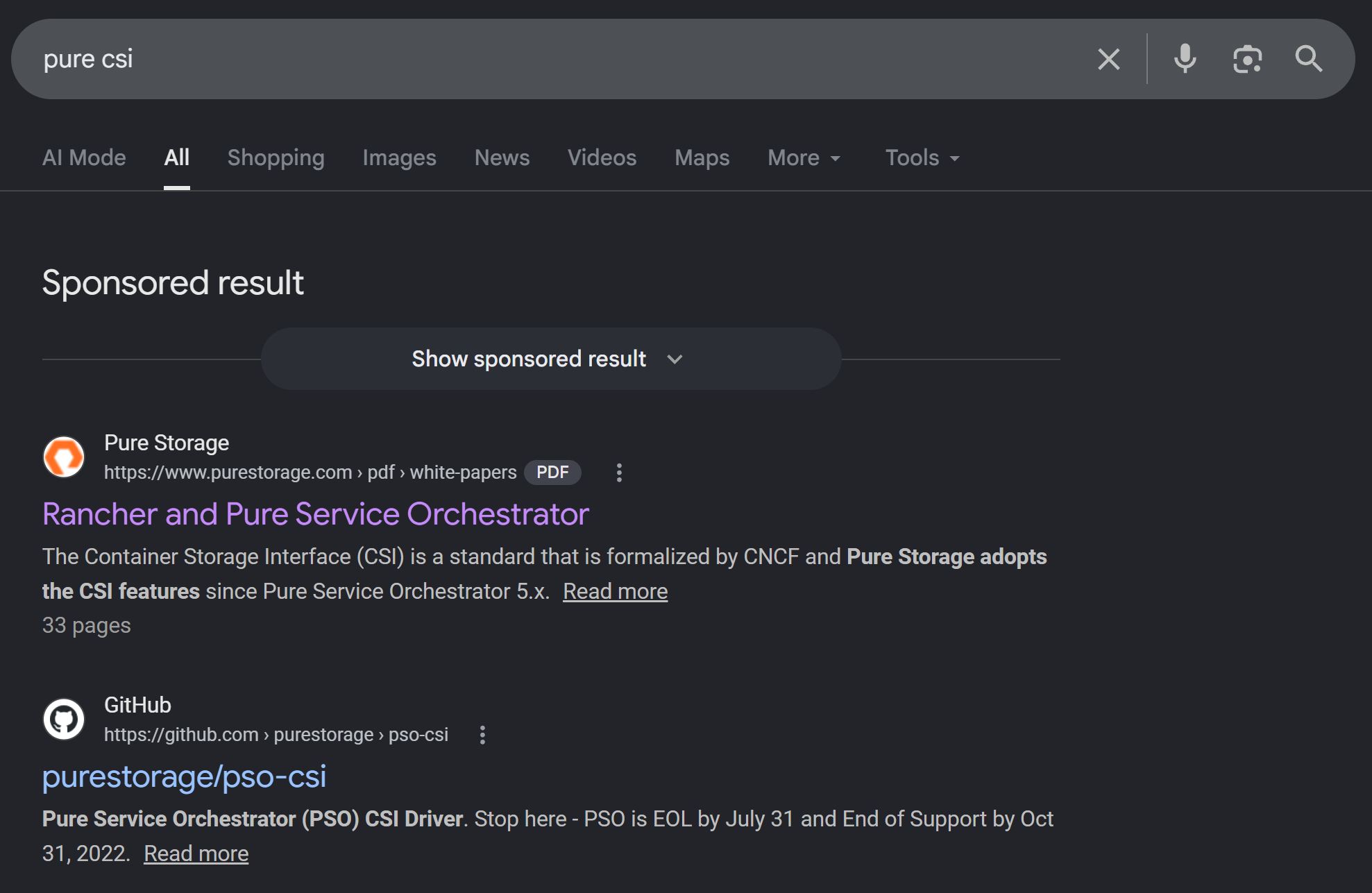
My past NAI deployments all used the Nutanix CSI driver which works great… if you have Nutanix storage. I wasn’t sure what to use this time. Longhorn CSI was installed to access local storage from the nodes, but research (ie testing) showed it isn’t a generic CSI either and is for Longhorn storage specifically. LLMs (Gemini, ChatGPT and Claude Opus) all told me to use Pure Service Orchestrator (PSO), and Google agreed. I tried PSO but it didn’t work, and this didn’t seem like a situation where I should have to spend a lot of time troubleshooting. I asked one more LLM, Grok this time. It’d recently come out with a new “society of mind” multi-agent architecture and it finally cleared things up: Pure deprecated PSO in favor of PX-CSI after the Portworx acquisition. This was only a couple months ago but all LLMs have released 1-2 minor version updates since then so your results may vary. Then again, the first two organic Google hits for “pure csi” are still PSO, so, maybe not:
Configuring PX-CSI for NAI
Here is what I had to do to successfully configure PX-CSI for unified block and file (UBF) for NAI:
- Install PX-CSI following the instructions
- Force PX-CSI to quit trying to create FlashBlade StorageClasses:
PX-CSI’s autodiscovery appears to have a baked-in assumption that if you’re doing NFS, you have a FlashBlade, and auto-creates storage classes for px-fb-direct-access-nfsv3 and px-fb-direct-access-nfsv4 which kept getting set as default for NFS. To get around this I disabled the autodiscover feature:
- Manually create FA StorageClasses (SC)
Now that auto-discover was disabled I needed to manually create my two FA SCs:
| |
I made px-fa-direct-access the default SC.
| |
- Create SCs (plural) required for NAI
The NAI deployment for NKP are very explicit about the requirement for a storage class named “nai-nfs-storage:”
 so I created a copy of px-fa-nfs with that name. Less obvious, but to be fair still documented in the “Nutanix Enterprise AI Configuration Parameters for the nai-operators Helm Chart” section of the documentation is that Clickhouse Keeper and Clickhouse Server both have a storageClass parameter that defaults to “nutanix-volume.” I found this out when ClickHouse PVCs stayed Pending with error: ‘failed to create Directory (400): Msg1: File system does not exist.’ after I tried to enable NAI. I resolved this by creating a copy of the
 px-fa-direct-access SC called nutanix-volume but theoretically I also could’ve updated nai-clickhousekeeper.clickhouseKeeper.storage.storageClass and nai-clickhouseserver.clickhouse.storage.storageClass but I didn’t want to run into any more surprises. I suspect this SC is created by default when you run NKP on NCP.
So finally, I had this: kubectl get sc
| |
Then I deleted the pending pods and the install completed:
kubectl delete pod -n nai-system --field-selector=status.phase=Pending --force --grace-period=0
While working on CSI, I noticed the iSCSI interfaces on Everpure were set to use Jumbo Frames:

I decided to match the MTU by updating my worker nodes to 9000 to align to Pure’s performance recommendation.
Until next time…
Bare-metal NKP + external storage works great for NAI, but the NAI on NKP deployment instructions may assume NKP on NCP, so it might be worth your time to double check the NAI AI Configuration Parameters before you start and pay close attention to your storage classes.
In a later post in this series, I’ll cover model deployment, endpoint deployment and post-deployment tasks using both pre-validated models and the “Import Models > From Hugging Face Model Hub” feature — see part 2 for those details.